
How Browser Zoom Changes a Wide Table—and What It Doesn't Change
How Browser Zoom Changes a Wide Table—and What It Doesn't Change
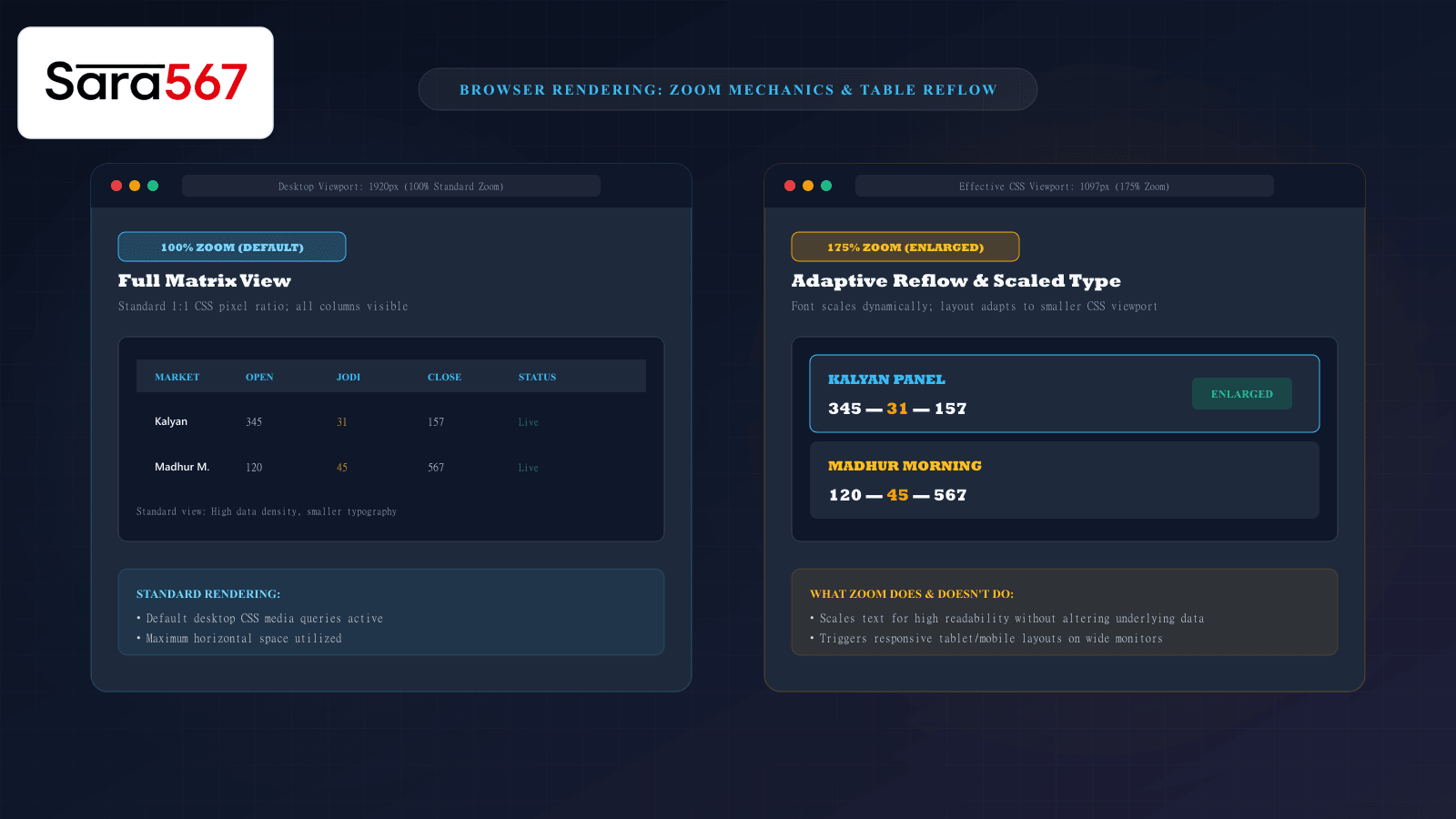
When reviewing historical market records, multi-digit panel charts, or weekly matrices on Sara 567, many users find themselves leaning closer to the screen or instinctively pressing Ctrl + (or Cmd + on Mac) to enlarge the text.
Zooming is one of the most natural and frequently used accessibility features in modern web browsers. Whether you want to inspect a three-digit Pana like 345 or verify a subtle date stamp, zooming makes small numbers legible.
However, browser zoom does not simply act as a static magnifying glass hovering over a piece of paper. In modern web development, zoom dynamically alters how the browser calculates layout dimensions, triggers responsive design breakpoints, and reflows content.
Understanding what browser zoom changes—and what it leaves completely untouched—helps you optimize your viewing layout and navigate dense data tables with maximum clarity.
Page Zoom vs. Pinch-to-Zoom: Two Completely Different Engines
A common point of confusion is assuming that zooming on a desktop browser works identically to pinch-zooming on a smartphone screen. In reality, modern browsers utilize two distinct zoom architectures:
┌────────────────────────────────────────────────────────────────────────┐
│                   PAGE ZOOM VS PINCH-TO-ZOOM                           │
├────────────────────┬───────────────────────────────────────────────────┤
│ DESKTOP PAGE ZOOM  │ Scales the CSS pixel ratio. Decreases the         │
│ (Ctrl + / -)       │ effective layout viewport width, causing web-     │
│                    │ elements to reflow, wrap, and trigger media rules.│
├────────────────────┼───────────────────────────────────────────────────┤
│ MOBILE PINCH-ZOOM  │ Adjusts the "Visual Viewport". Does NOT trigger   │
│ (Touch Gestures)   │ CSS reflows; acts like a camera lens panning      │
│                    │ across a frozen, pre-rendered canvas.             │
└────────────────────┴───────────────────────────────────────────────────┘
When you press Ctrl + on a desktop monitor, you are not merely magnifying pixels. You are instructing the browser: "Re-calculate the entire webpage layout as if the monitor were physically smaller."
What Browser Zoom DOES Change
When you adjust the zoom level on a desktop browser (such as zooming to 150% or 175%), several significant geometric changes occur:
1. Effective CSS Viewport Dimensions Shrink
If your monitor has a physical resolution of 1920×1080 pixels:
- At 100% Zoom, your browser's CSS viewport is
1920px. The page renders the full desktop layout with six to eight horizontal table columns. - At 150% Zoom, the browser's CSS viewport drops to
1280px. - At 200% Zoom, the effective CSS viewport drops to
960px!
Because the CSS engine now perceives a viewport of only 960px, it activates any @media (max-width: 1024px) responsive breakpoints defined in the stylesheet. Suddenly, desktop navigation bars may collapse into mobile hamburger menus, and wide multi-column matrices may reflow into vertical card stacks.
2. Typography and Touch Target Scaling
Browser zoom proportionally scales font sizes, padding, borders, and margins defined in relative units (rem, em, %, or px). This dramatically enhances readability for users with low vision, transforming a 12px table cell number into a large, easy-to-read 24px digit.
3. Sticky Element Geometry
If a table features a pinned header or a frozen date column (position: sticky; left: 0;), browser zoom recalculates the coordinate offsets. Modern browsers handle sticky coordinates seamlessly during zoom, keeping frozen headers locked in place as you scroll.
What Browser Zoom DOES NOT Change
While zoom alters the visual geometry of the screen, it leaves several core technical attributes completely unchanged:
┌────────────────────────────────────────────────────────────────────────┐
│                     WHAT REMAINS 100% UNCHANGED                        │
├────────────────────────────────────────────────────────────────────────┤
│ 1. UNDERLYING DATA INTEGRITY: The numbers in the table (Pana, Jodi,    │
│    draw dates) are never altered, rounded, or deleted by zooming.      │
│                                                                        │
│ 2. DOM ACCESSIBILITY HIERARCHY: Screen readers and assistive tools     │
│    interpret the exact same semantic <th> and <td> relationships       │
│    regardless of whether the visual display is at 50% or 300%.         │
│                                                                        │
│ 3. COLOR CONTRAST RATIOS: Zooming enlarges text, but the mathematical  │
│    luminance contrast ratio between text (#f8fafc) and background     │
│    (#0f172a) remains identical.                                        │
│                                                                        │
│ 4. VECTOR & SVG RESOLUTION: Vector badges (like the authentic Sara 567 │
│    crest) and CSS borders remain razor-sharp at any magnification,     │
│    unlike raster JPEG screenshots which become blurry and pixelated.   │
└────────────────────────────────────────────────────────────────────────┘
Practical Tips for Reading Wide Charts at High Zoom
If you prefer browsing with high zoom levels (150%+), use these practical strategies to maximize screen efficiency:
- Combine High Zoom with Full-Screen Mode (
F11): PressingF11on Windows orControl + Command + Fon Mac hides browser toolbars, tabs, and operating system taskbars. This instantly recovers 120+ vertical pixels, allowing zoomed-in tables to display more rows without constant scrolling. - Utilize Table-Specific Horizontal Scrolling: When zoom pushes an eight-column market chart past the screen boundary, look for the inner table scroll container rather than trying to pan the whole webpage.
- Resetting Zoom Quickly: If a page layout ever feels disoriented or elements appear unexpectedly overlapped, press
Ctrl + 0(orCmd + 0) to instantly restore the default 100% viewport scale.
Summary
Browser zoom is a powerful accessibility and viewing tool that does far more than magnify pixels. By altering the effective CSS viewport, zoom allows modern responsive websites like Sara 567 to reflow dense market tables into comfortable, legible reading configurations. Understanding how zoom interacts with responsive design enables you to tailor your viewing setup for maximum comfort without compromising data integrity.
Explore Corresponding Market Charts & Verification Tools
Verify real-time numbers, track open/close records, and analyze weekly trends on our informational dashboard.