
Why a Chart Looks Different in Print Than on Screen
Why a Chart Looks Different in Print Than on Screen
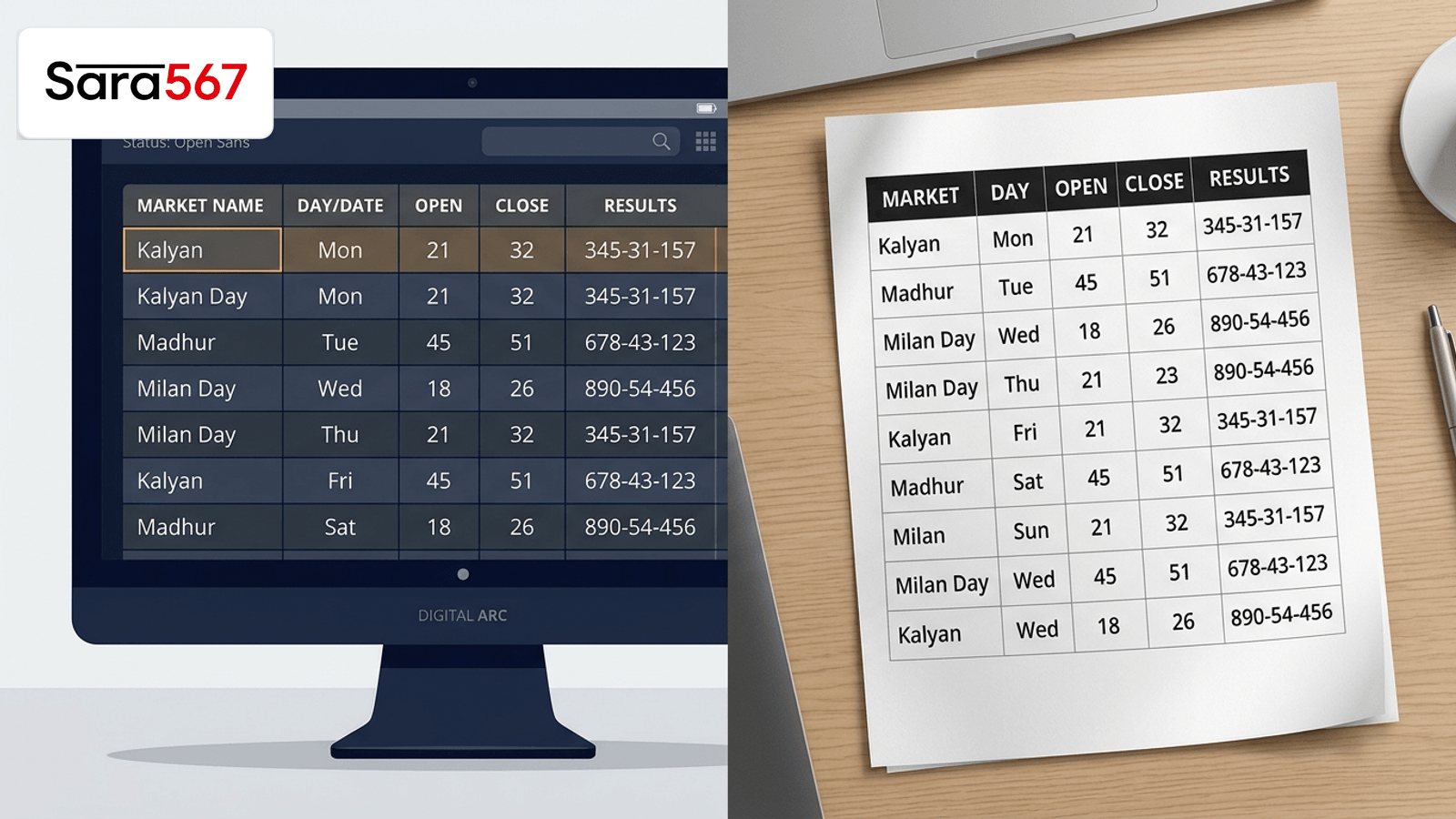
When you look at an archive table on a digital monitor, everything fits into an interactive canvas. You can scroll horizontally, hover over individual numbers, and view rich status tags colored in green, amber, or slate blue. Yet when you click the browser's "Print" button or export the page to a PDF document, the result often looks surprisingly different. Background fills disappear, the rightmost columns may get cut off at the page margin, and rows split awkwardly across page breaks.
This visual discrepancy frequently leads users to suspect a data error or wonder if the website served an outdated copy. In reality, the difference stems from fundamental differences between how web rendering engines paint pixels on an interactive display versus how print formatters rasterize content onto physical paper.
Understanding why a print chart vs screen comparison reveals these layout changes helps anyone archiving historical data sheets, verifying records, or printing offline references for markets like Kalyan, Milan Day, or Madhur Morning.
The Viewport vs the Fixed Paper Boundary
The primary cause of layout divergence is the boundary model.
On a modern desktop browser, a web table operates within a flexible viewport. If a table contains eight columns—representing a market's opening session, daily panels, and closing numbers from Monday through Sunday—the web browser expands the table or places it inside a scrollable container (overflow-x: auto). The screen gives the layout infinite horizontal and vertical elasticity.
Physical paper, by contrast, enforces an unyielding physical constraint:
- Standard A4 dimensions: 210 mm × 297 mm (approximately 8.27 in × 11.69 in).
- Standard US Letter dimensions: 215.9 mm × 279.4 mm (8.5 in × 11.0 in).
- Default printable width: Once standard half-inch or three-quarter-inch margins are deducted, the usable horizontal width shrinks to roughly 650 to 720 CSS pixels in portrait orientation.
When an 8-column wide table engineered for a 1200-pixel desktop monitor meets a 680-pixel paper boundary, the browser's print engine must make an immediate choice: shrink every font proportionally until it becomes illegible, wrap cell contents into narrow vertical towers, or silently clip off the Saturday and Sunday columns at the right margin.
Screen Viewport (Fluid & Scrollable):
[Mon] [Tue] [Wed] [Thu] [Fri] [Sat] [Sun]  --> Infinite Canvas (1200px+)

Standard Paper Print (Fixed Margins):
|-- Margin --| [Mon] [Tue] [Wed] [Thu] [Fri] | [Sat] [Sun] (Clipped!) |-- Margin --|
Unless a website or user explicitly switches the print setup to Landscape orientation, multi-column weekly matrices will struggle to fit across portrait sheets.
CSS @media print and Color Stripping
Another stark difference is the disappearance of background colors and zebra-striping. On screen, table headers often display bold backgrounds (such as dark charcoal or brand orange) with white text, and alternating rows use subtle gray fills to guide the reader's eye across dense numerical rows.
When sending the document to print, most desktop browsers automatically activate a print stylesheet governed by CSS @media print rules. Browsers do this intentionally for two historical reasons:
- Ink Preservation: Solid background blocks consume excessive printer toner and saturate lightweight paper.
- Readability: Low-contrast digital themes (such as light gray text on dark slate cards) often print as muddy, unreadable smudges on monochrome office printers.
By default, Chrome, Firefox, and Safari disable background printing unless the user manually checks "Background graphics" in the print dialog or the stylesheet includes:
@media print {
  table {
    -webkit-print-color-adjust: exact;
    print-color-adjust: exact;
  }
}
If this directive is absent, the browser strips the dark background header. If the header text was originally styled white, the print engine tries to auto-invert it to black. If the inversion fails to compute properly, header labels can appear faint or invisible, giving the impression that table titles vanished.
Page Breaks and Orphaned Table Rows
On a digital page, a 50-week historical archive is one uninterrupted flow. You scroll downward continuously from January to December without friction.
Paper printing requires paginated partitioning. Web layout engines break long HTML tables into discrete sheets, and without specialized CSS rules, these breaks happen at arbitrary pixel thresholds:
- Split Rows: A page break may slice right through the middle of a two-digit Jodi or three-digit Pana cell, leaving the upper half of the number on page one and the lower half on page two.
- Orphan Headers: A table header may appear at the very bottom of page one, while the corresponding numerical rows begin at the top of page two.
- Missing Column Context: On digital screens, sticky headers (
position: sticky; top: 0) follow you down the page. On paper, unless the table implements semantic<thead>tags that repeat on every printed sheet, pages two, three, and four lack column labels entirely.
Web standards address this with CSS fragmentation properties:
@media print {
  thead {
    display: table-header-group; /* Forces headers to repeat across pages */
  }
  tr {
    break-inside: avoid;
    page-break-inside: avoid; /* Prevents splitting a single row across sheets */
  }
}
When reviewing printed charts or PDF exports, verifying that the table maintains consistent row integrity across page divisions is critical for accurate offline analysis.
Resolution: Screen Pixels vs Printer DPI
Displays and printers calculate visual sharpness through entirely different measurement systems:
| Display Attribute | Digital Screen | Physical Print / PDF |
|---|---|---|
| Measurement Unit | Pixels (CSS px / Device pixels) | Dots Per Inch (DPI / Points) |
| Typical Density | 72–144 DPI (Standard) to 220+ (Retina) | 300 to 1200 DPI (High-resolution print) |
| Color Model | RGB (Red, Green, Blue light) | CMYK (Cyan, Magenta, Yellow, Key/Black ink) |
| Font Smoothing | Subpixel antialiasing | Vector curves or high-DPI rasterization |
| Interactive States | Tooltips, hovers, active focus rings | Static, immutable physical marks |
Because screens display backlit RGB color while paper relies on reflected ambient light hitting CMYK pigments, subtle color codes used to distinguish day results from night sessions can appear significantly darker or shift hue when printed.
Practical Steps for Clean Offline Chart Printing
If you need to print a market panel or save a permanent record to PDF from an informational portal like Sara 567, follow these practical print adjustments:
- Always Choose Landscape for Multi-Column Tables: A standard portrait page has only ~8 inches of width. Landscape orientation provides 11 inches, granting sufficient room for 7-day panel records without squeezing or clipping weekend columns.
- Enable Background Graphics in Print Preview: In Chrome or Edge, expand More settings in the print preview modal and toggle on "Background graphics". This preserves zebra striping and header fills.
- Use Custom Scaling (75% to 85%): If the final column slightly exceeds the margin, reduce the print scale from 100% to 80%. This fits the full table onto single sheets without cutting off numbers.
- Inspect the Print Preview Window First: Never send a large table straight to paper without inspecting the preview. The preview shows exactly where page breaks fall and whether headers repeat.
- Cross-Check with Live Digital Records: If a printed sheet looks ambiguous due to margin compression, return to the live all market charts index to verify the complete, uninterrupted digital table.
Summary: Same Numbers, Different Mediums
A chart looking different in print than on screen does not mean the underlying numerical record changed. The difference is simply the natural result of moving from an elastic, backlit, scrollable digital browser to a static, paginated physical medium.
By understanding how margins, CSS print stylesheets, and page breaks behave, you can format, print, and archive data tables accurately whenever offline review is required. For more on how device types shape table navigation, explore our comparative guide on desktop vs mobile result presentations.
Explore Corresponding Market Charts & Verification Tools
Verify real-time numbers, track open/close records, and analyze weekly trends on our informational dashboard.