
Why a Website May Open on Wi-Fi but Fail on Mobile Data
Why a Website May Open on Wi-Fi but Fail on Mobile Data
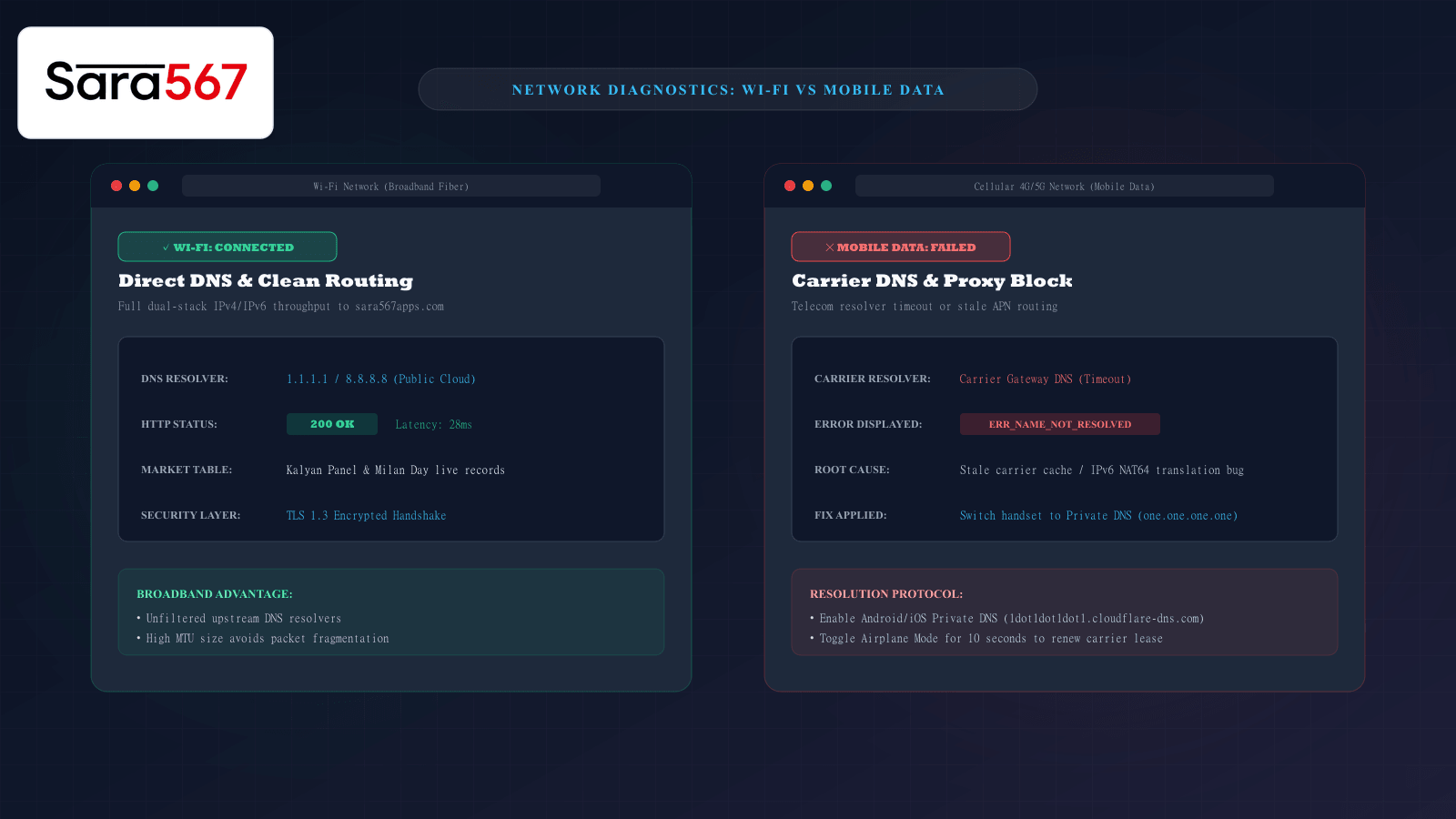
One of the most baffling digital connectivity issues occurs when a website works flawlessly over your home or office Wi-Fi connection, but the moment you step outside and switch to cellular 4G or 5G mobile data, the browser stalls with a connection timeout (ERR_CONNECTION_TIMED_OUT) or a DNS resolution failure (ERR_NAME_NOT_RESOLVED).
When checking live market dashboards or historical panel charts for Kalyan, Madhur Morning, or Milan Day on Sara 567, this sudden discrepancy can feel like a platform outage. Yet, if you immediately reconnect to Wi-Fi, the page loads in milliseconds.
Because the website server is operating normally, the breakdown lies in the underlying network architecture that separates fixed broadband internet from mobile telecommunications. Understanding these network divergence points allows you to diagnose and restore cellular access in just a few taps.
Wi-Fi vs. Mobile Data: What Happens Behind the Screen
When your phone requests a web address, it relies on several layers of networking infrastructure to convert the domain name into an IP address and establish an encrypted TLS tunnel:
┌────────────────────────────────────────────────────────────────────────┐
│                   NETWORK PATHWAY DIVERGENCE                           │
├────────────────────┬───────────────────────────────────────────────────┤
│ HOME BROADBAND     │ Phone ──► Home Router ──► ISP Fiber Gateway       │
│ (Wi-Fi)            │ Direct routing, standard MTU, public DNS options  │
├────────────────────┼───────────────────────────────────────────────────┤
│ MOBILE CELLULAR    │ Phone ──► Cell Tower ──► Telecom PGW / GGSN       │
│ (4G / 5G)          │ ──► NAT64 / DNS64 Gateway ──► Carrier Firewall   │
│                    │ CGNAT filtering, forced telecom DNS, strict MTU   │
└────────────────────┴───────────────────────────────────────────────────┘
Cellular networks do not provide a raw, direct internet pipe. Instead, mobile data passes through sophisticated carrier gateways designed to manage millions of moving devices, battery conservation protocols, and IP address conservation.
Four Technical Culprits Behind Mobile Data Failures
1. Carrier DNS Resolver Latency & Stale Caches
Every time you enter a web address, your device queries a Domain Name System (DNS) server to find the numerical IP address of the host.
- On Wi-Fi, your router typically forwards queries to high-speed upstream DNS resolvers (such as Cloudflare
1.1.1.1or Google8.8.8.8). - On mobile data, your phone is locked by default to your cellular provider’s internal DNS resolvers (e.g., Jio, Airtel, Vi, Vodafone).
Mobile carrier DNS servers handle billions of requests per minute and employ aggressive caching policies. If a website recently upgraded its hosting servers, rotated its Cloudflare proxy IP addresses, or adjusted its CDN configuration, the mobile carrier’s DNS cache may continue returning an obsolete IP address for hours or days, causing an immediate connection failure.
2. IPv6 NAT64 / DNS64 Translation Conflicts
Modern 4G and 5G cellular networks are predominantly IPv6-only environments. Because many web resources across the global internet still operate exclusively on IPv4, carriers use automated translation technologies called 464XLAT or NAT64/DNS64 to bridge the gap.
If a carrier’s translation gateway encounters a misconfigured AAAA record or experiences regional routing congestion, IPv6 requests stall completely. Because your home Wi-Fi broadband is typically dual-stack (supporting native IPv4 and IPv6 concurrently), it bypasses this translation bottleneck entirely.
3. Transparent Carrier Proxies & Content Categorization
To optimize mobile network bandwidth and enforce parental or regional filtering rules, telecom operators frequently route non-encrypted or unclassified traffic through transparent caching proxies.
If an automated telecom algorithm temporarily flags an informational chart domain as an uncategorized portal or an abusive traffic source, the carrier gateway may silently drop TCP SYN packets, resulting in an endless loading wheel while Wi-Fi continues to work unobstructed.
4. Handset Low Data Mode & APN Configuration Glitches
Mobile operating systems (Android and iOS) include aggressive background data-saving features:
- Low Data Mode (iOS) and Data Saver (Android) restrict background network calls, suppress WebSocket connections, and throttle chunked data transfers on cellular networks to conserve metered mobile balances.
- Corrupted Access Point Name (APN) settings on your SIM card can improperly route web traffic through legacy multimedia (MMS) proxy gateways instead of the direct internet bearer.
Step-by-Step Fixes to Restore Mobile Data Access
If a chart portal opens on Wi-Fi but refuses to load on mobile data, work through these proven technical solutions:
Method 1: Enable Encrypted Private DNS (Android & iOS)
The single most effective permanent fix is bypassing your cellular provider’s default recursive resolver by configuring Private DNS (DNS over TLS) on your device:
┌────────────────────────────────────────────────────────────────────────┐
│                   CONFIGURING SECURE PRIVATE DNS                       │
├────────────────────────────────────────────────────────────────────────┤
│ ON ANDROID:                                                            │
│ 1. Open Settings > Network & Internet > Private DNS                    │
│ 2. Select "Private DNS provider hostname"                              │
│ 3. Enter: one.one.one.one (Cloudflare) OR dns.google (Google)          │
│ 4. Tap Save                                                            │
├────────────────────────────────────────────────────────────────────────┤
│ ON IPHONE (iOS):                                                       │
│ 1. Download the official Cloudflare 1.1.1.1 DNS profile or             │
│    go to Settings > Wi-Fi / Mobile > Configure DNS > Manual            │
│ 2. Add: 1.1.1.1 and 1.0.0.1                                           │
└────────────────────────────────────────────────────────────────────────┘
Once configured, your mobile browser routes all domain lookups through encrypted, globally synchronized cloud resolvers, completely circumventing carrier DNS delays and filtering.
Method 2: Force a Radio Handshake (Toggle Airplane Mode)
Mobile cellular connections obtain temporary IP leases and gateway assignments from local cellular base stations.
- Swipe down your phone's notification shade and turn on Airplane Mode.
- Wait 10 to 15 seconds.
- Turn off Airplane Mode and allow your phone to re-authenticate with the cellular tower.
This forces your handset’s baseband modem to teardown stale TCP sessions, request a fresh IP lease from the carrier, and connect to an updated gateway node.
Method 3: Reset APN (Access Point Name) Settings
- On Android: Navigate to Settings > Mobile Network > Access Point Names > Tap the three dots
⋮> Reset to default. - On iPhone: Navigate to Settings > Mobile Data > Mobile Data Network > Reset Settings.
Resetting the APN flushes custom proxy rules and restores the clean, direct packet bearer established by your telecom provider.
Method 4: Clear Mobile Browser Network Cache
Mobile browsers maintain an internal socket and host-resolver cache that does not automatically clear when you switch network interfaces:
- In Chrome: Navigate to
chrome://net-internals/#dnsand tap "Clear host cache". - Alternatively: Clear browsing data (specifically cached images and files) in browser settings.
Diagnostic Summary Matrix
| Symptom | Probable Cause | Quickest Resolution |
|---|---|---|
ERR_NAME_NOT_RESOLVED | Carrier DNS resolver failure | Switch handset to Private DNS (one.one.one.one) |
ERR_CONNECTION_TIMED_OUT | IPv6 NAT64 translation stall | Toggle Airplane Mode to cycle cellular lease |
| Page loads text without styling | Carrier data compression proxy | Disable Data Saver mode in phone settings |
| Works in Chrome, fails in Safari | Private Relay / VPN conflict | Temporarily toggle iCloud Private Relay |
Summary
When a website works on Wi-Fi but stumbles on mobile data, the website itself is healthy. The friction is almost universally located within the carrier's DNS servers, IPv6 translation gateways, or handset data-saver throttles. By configuring a secure Private DNS provider and refreshing your cellular connection, you can guarantee smooth, uninterrupted access to live charts and historical archives wherever you travel.
Explore Corresponding Market Charts & Verification Tools
Verify real-time numbers, track open/close records, and analyze weekly trends on our informational dashboard.