
How to Save a Long Chart as PDF Without Cutting Off Columns
How to Save a Long Chart as PDF Without Cutting Off Columns
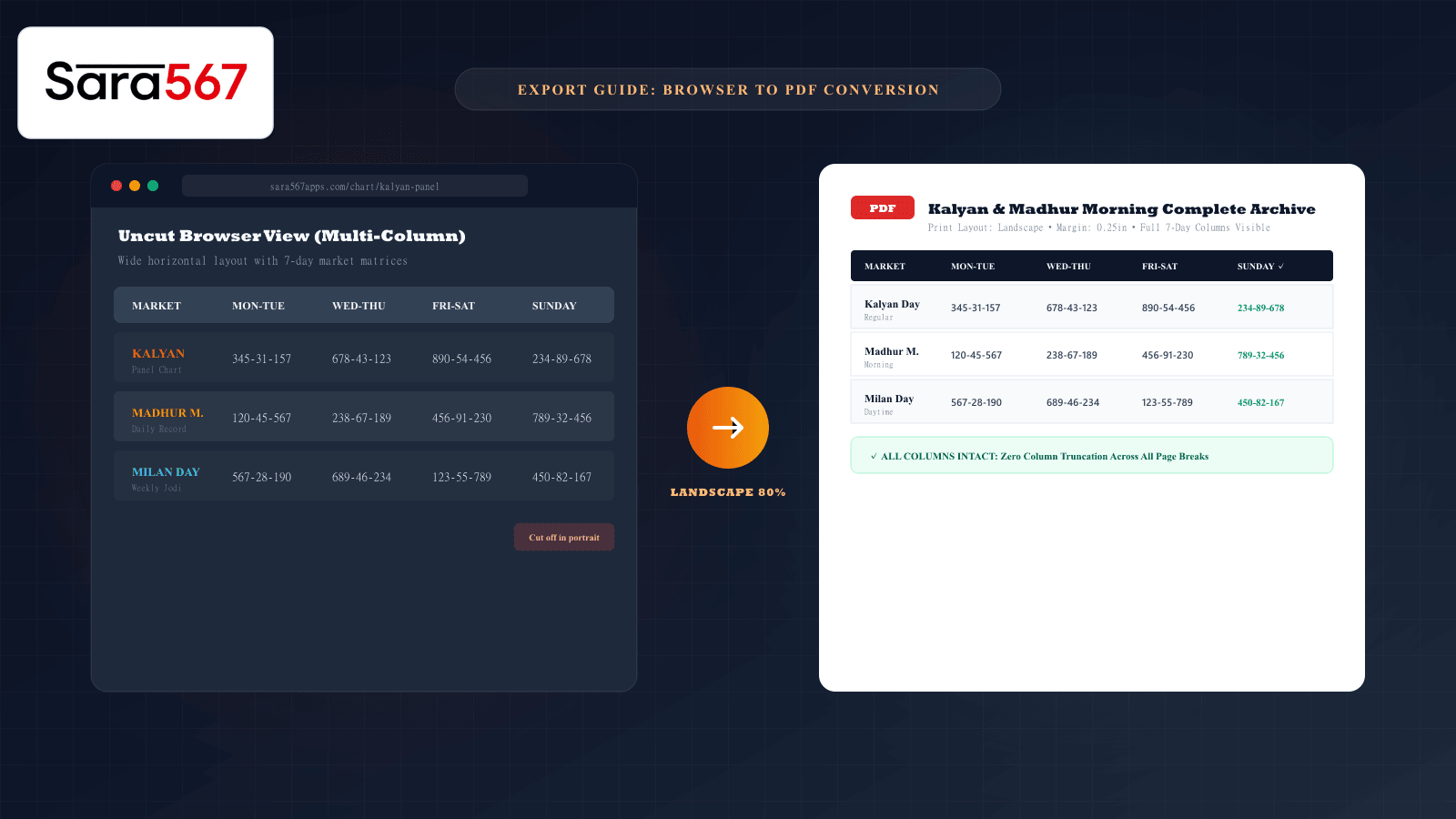
Whether you are archiving an annual record sheet for Kalyan, saving a weekly Pana grid for Milan Day, or downloading a complete Madhur Morning panel matrix, saving web tables as PDF files is the most reliable way to maintain an offline, timestamped reference.
However, exporting wide web tables directly through a browser’s default "Print to PDF" tool often results in truncated documents. Right-hand columns disappear beyond the paper margin, multi-digit panel numbers split across page breaks, and column headers vanish after page one.
Saving a complete, multi-column table to PDF requires adjusting four specific printer settings in your browser before saving.
Why Columns Get Cut Off by Default
Modern web tables for market analytics display up to eight dense columns across a weekly grid: Open Pana, Jodi, and Close Pana for Monday through Sunday. On a desktop browser, this table effortlessly stretches across 1100 to 1400 screen pixels.
When you trigger Print to PDF (Ctrl+P on Windows or Cmd+P on macOS), standard desktop browsers automatically default to:
- Portrait Orientation: Width of roughly 8.27 inches (A4) or 8.5 inches (US Letter).
- Default Margins: 0.75-inch white space on both left and right sides.
- 100% Fixed Scale: No automatic downsizing of HTML table widths.
After deducting margins, your browser has only about 680 printable pixels of horizontal room. The final 300 to 500 pixels of the table—typically the Friday, Saturday, and Sunday columns—simply fall off the edge of the virtual canvas.
Step-by-Step: The 4 Settings to Save Wide Tables Intact
To capture every column and row without truncation, open the target chart page (such as the All Market Charts Directory) and follow these exact adjustments:
[Print Modal]
  ├── Destination:  Save as PDF
  ├── Layout:       Landscape (Rotates canvas to 11 inches)
  ├── Margins:      Minimum / None (Expands usable width to 96%)
  ├── Scale:        Custom -> 75% to 85% (Shrinks table to fit paper boundaries)
  └── Options:      [✓] Background graphics (Preserves zebra striping & headers)
1. Switch Layout from Portrait to Landscape
The single most impactful adjustment is changing the document orientation:
- In the print dialog, find the Layout dropdown.
- Change Portrait to Landscape.
- Result: Your horizontal printable canvas expands from 8.27 inches to 11.69 inches (A4) or 11.0 inches (Letter), immediately providing roughly 35% more horizontal space for wide seven-day market columns.
2. Adjust Margins to "Minimum" or "None"
By default, browsers reserve thick white borders around every printed page:
- Click More settings in Chrome, Edge, or Brave.
- Under Margins, select Minimum (or Custom and enter
0.2 in/5 mm). - Result: This reclaims over an inch of horizontal width, preventing early column clipping.
3. Set Scale to "Custom" (75% to 85%)
If your table contains historical pana records (3 digits + 2 digits + 3 digits per day) that still press against the right border:
- In More settings, locate the Scale option.
- Switch from Default to Custom.
- Enter 80% (or adjust between 75% and 85%).
- Watch the live preview window: verify that the rightmost Sunday column pulls completely inside the blue dotted page boundary.
4. Enable "Background Graphics"
To keep headers and alternating row colors readable:
- Check the box labeled "Background graphics".
- This ensures that dark table headers, market status indicators, and column dividers render with full contrast in the resulting PDF.
Browser Comparison: Where to Find PDF Settings
Different desktop and mobile browsers place print controls in slightly different menus:
| Browser | Print Shortcut | Scale Location | Margin Location |
|---|---|---|---|
| Google Chrome | Ctrl + P / Cmd + P | More settings → Scale → Custom | More settings → Margins → Minimum |
| Microsoft Edge | Ctrl + P | More options → Scaling | Margins dropdown → Narrow |
| Mozilla Firefox | Ctrl + P | Print dialog → Scale slider | Page Setup → Margins |
| Safari (macOS) | Cmd + P | Orientation icons → Scale % | Show Details → Paper Size / Margins |
| Android (Chrome) | Menu (⋮) → Share → Print | Paper size dropdown | Tap arrow for Landscape toggle |
| iOS (Safari) | Share → Print → Pinch-to-preview | Options icon | Tap orientation toggle |
How to Inspect the Generated PDF Before Archiving
After clicking Save, choose a descriptive filename that includes the market name and date range (e.g., Kalyan-Panel-Chart-Oct-2026.pdf).
Open the saved PDF in a standalone viewer (such as Adobe Acrobat Reader or your browser's PDF tab) and perform these three quality checks:
- Column Verification: Count the columns across page one. Confirm that the last column (Sunday or Close Pana) is fully visible with complete borders.
- Page Break Check: Scroll to page two. Ensure no single row was sliced horizontally across the page threshold.
- Number Clarity: Zoom in to 150%. Confirm the digits remain crisp and legible at 80% custom scale.
Summary Checklist
Saving a long chart as a PDF without cutting off columns is easy once you override standard desktop defaults:
- Destination: Save as PDF.
- Layout: Landscape.
- Margins: Minimum.
- Scale: Custom (80%).
- Background Graphics: Enabled.
To explore the underlying styling rules that separate digital screens from printed sheets, read our deep dive on why charts look different in print than on screen. If you encounter broken links or loading issues while accessing chart pages, consult our diagnostic guide on troubleshooting chart links that will not open.
Explore Corresponding Market Charts & Verification Tools
Verify real-time numbers, track open/close records, and analyze weekly trends on our informational dashboard.